¶ Subtasks — Dependent Tasks
Subtasks are separate tasks but are closely linked to the main task.
Subtasks are automatically assigned to the trading partner and domain from the main task.
If you want to divide the workload of a task among more people or break it down into smaller parts, you can add subtasks to a created main task.
¶ Subtasks can be added:
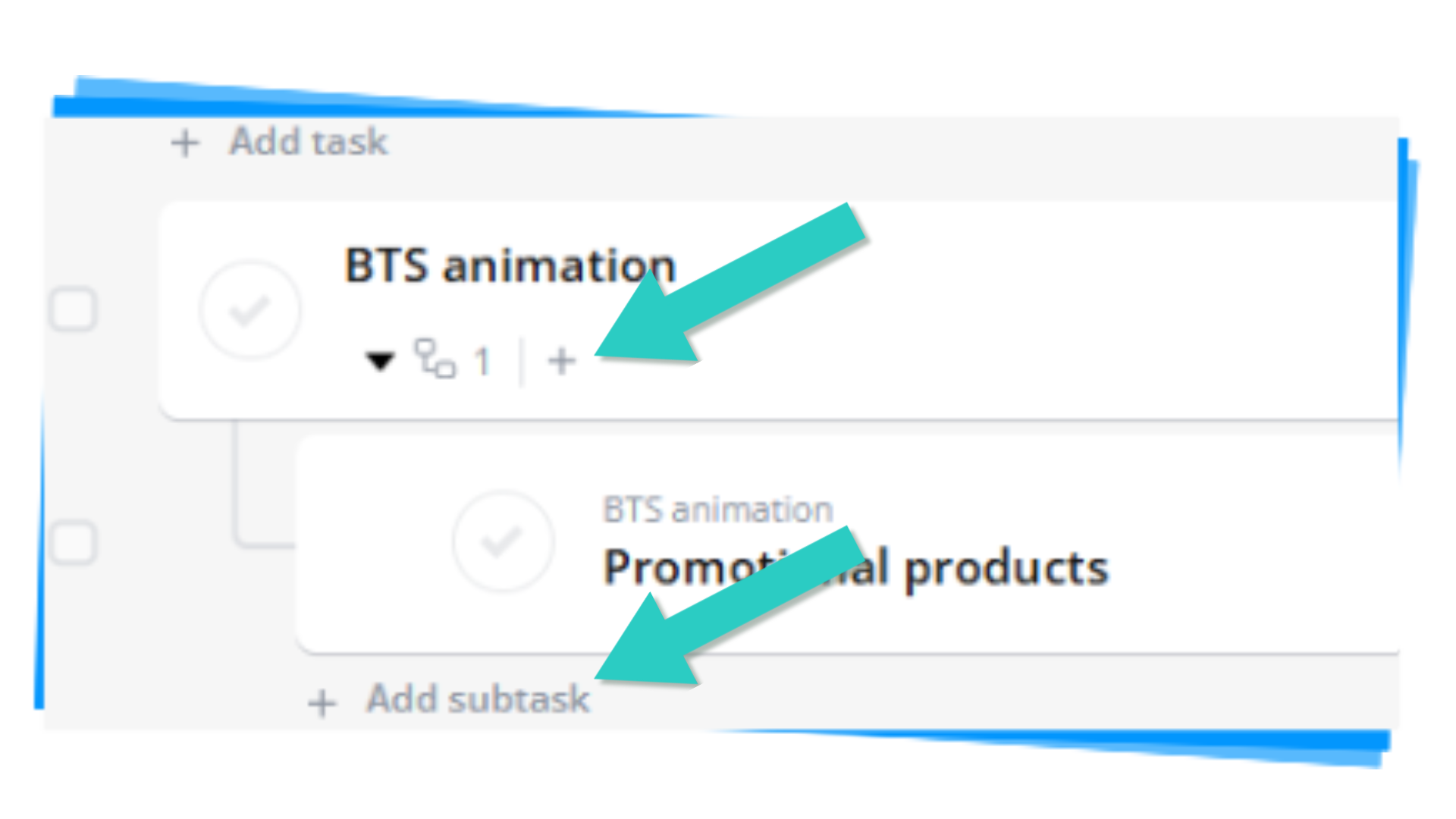
➡️ directly from the task board:
- Click the plus icon "+" below the task name to add the first subtask,
- or click "+ Add subtask" to add additional subtasks,
➡️ via the main task form:
- In the main task form, click + Add Subtask and fill in the subtask name.
- From the main task view, you can set the subtask status, assign users as "Assignees" and "Watchers", and set the "Due Date" for the subtask.
- If you want to add more details to the subtask, save the main task and navigate to the subtask.
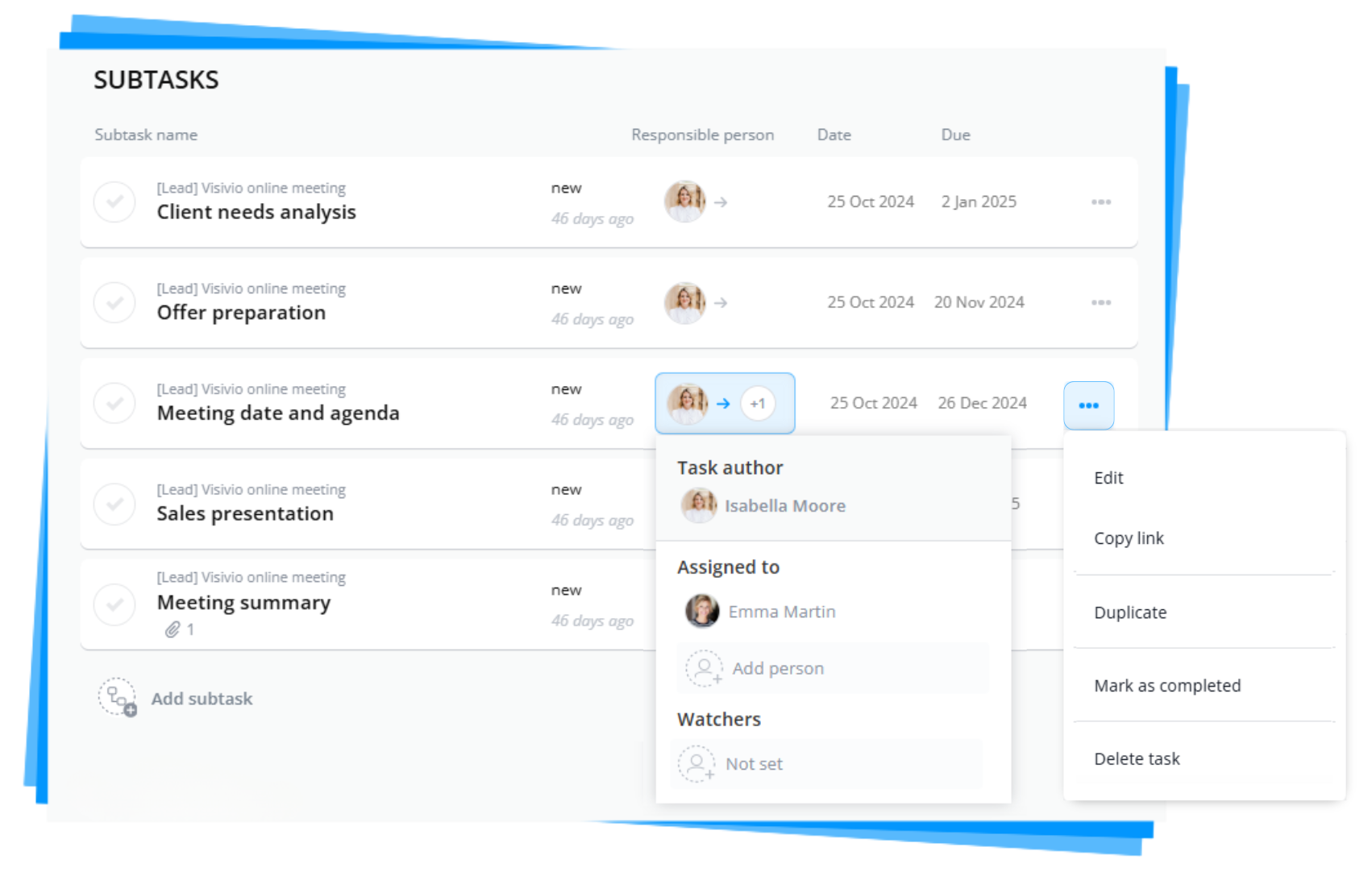
Created subtasks are visible in the task list. You can collapse or expand them using the special subtask icon
.
If you want to add a task description or attach files, go to the form by clicking on the task name.
¶ ➡️ Editing a Subtask via the Form
¶ You can edit subtasks:
- directly on the task board
- or in detail within the subtask form.
1. To access a subtask, click its name on the task board.
2. In the form, you can modify or complete the following fields:
- Task name (up to 60 characters). You can include short tags (up to 18 characters) in the task name by enclosing text in square brackets, e.g., [contract].
- Task status (default is “new”).
- Due date — the planned completion date for the task.
- Channel and category.
- Task Priority on a scale from 0 to 100 (default is “0”):
Low urgency (range: 0-30),
Medium urgency (range: 31-60),
High urgency (range 61-90),
Critical urgency (range: 91-100). - Assign the subtask to users.
- Add Watchers to the subtask.
- Provide a detailed description of the subtask.
- Add attachments — supported file formats include DOC, PDF, DOCX, TXT, ZIP, JPEG, JPG, PNG, GIF. The maximum file size is 30 MB for tasks and 10 MB for comments.
If your file is too large or in an unsupported format, upload it to a cloud storage service (e.g., OneDrive, Google Drive, Dropbox) and insert the link into the subtask.
3. After completing the fields, click the Save Subtask button  , to save your changes.
Congratulations, the changes to the subtask form have been saved!