¶ I. Mandatory Fields in Tasks
In TastyTask, only users with the “Administrator” role can manage which fields are mandatory in tasks. This feature allows you to tailor the task creation process to meet the specific needs of your organization.
Task fields in the form are divided into:
➡️ mandatory fields,
➡️ optional fields, which can be customized based on your organization’s needs.

¶ II. Mandatory Fields
The following fields are mandatory and cannot be deselected, as they are essential for the smooth functioning of TastyTask and effective task management:
-
Task Name — serves as the primary identifier of the task.
-
Status — provides information about the current progress of the task. By default, the status is set to “New,” so if the user does not change it, the field will remain filled with the default status.
-
Created By — identifies the task creator, which is crucial for assigning permissions. This field is automatically filled in by the system.
¶ III. Optional Fields
The following fields can be customized to suit the specific needs of your company.
Administrators can decide which of these fields will be mandatory in the task form for their organization:
-
Business partner – link tasks to clients to effectively manage both individual tasks and entire projects for specific suppliers, customers, and business partners. Filling in this field allows for quick filtering of tasks by associated companies.
-
Domain – — specify the client’s domain related to the task, helping organize work across various client products and services.
-
Due Date — set an end date, which is key for planning and time management. Requiring a deadline ensures tasks are time-bound and prioritized effectively.
-
Channel/Category* — classify tasks for easier organization and identification. Assigning a task to a specific category or channel helps identify its focus, improving resource and priority management.
-
Priority — indicate the priority level of a task. Requiring urgency ensures the team focuses on the most critical tasks first.
-
Assigned to — identify the person responsible for completing the task, eliminating confusion about accountability and enabling progress tracking.
-
Watchers — add users to monitor task progress and receive notifications about updates, enhancing team communication.
-
Task Description — provide detailed task requirements and objectives, ensuring clarity and alignment.
*Recommended to make mandatory.
With the optional fields, Administrators can customize the task form to meet the specifics and needs of their organization, which promotes better work organization and increased team efficiency.
¶ IV. Why Make Optional Fields Mandatory?
Marking optional fields as mandatory in the TastyTask task form is essential for maintaining order and improving task management efficiency. Here’s why:
-
Easier Filtering and Sorting — mandatory fields allow for sorting and filtering tasks based on consistent criteria such as deadlines, priorities, or assigned personnel. This makes it easier to locate specific tasks and avoid clutter.
-
Clarity and Organization — mandatory fields eliminate confusion on the task board. When every task contains essential information, it’s clear who is responsible for what and when it’s due.
-
Prevention of Disorganization — fields like Channel/Category ensure that tasks are appropriately categorized. Instead of ending up in a general backlog, tasks can be immediately associated with their relevant areas, making it easier to understand their context later.
-
Avoiding Ambiguous Tasks — fields such as Due Date and Assignees ensure that tasks have clear deadlines and designated responsibilities, reducing ambiguity and delays.
By marking the right fields as mandatory, you ensure that you and your team are organized, have better communication, and have full control over tasks and their deadlines, which supports the achievement of goals without delays. You avoid chaos and disorganization by selecting the key fields for your organization, making the tasks on the board clearer and the team’s work much more efficient.
¶ V. Editing Required Fields in Tasks
Permissions to to mark fields as required are granted only to users assigned the “Administrator” role.
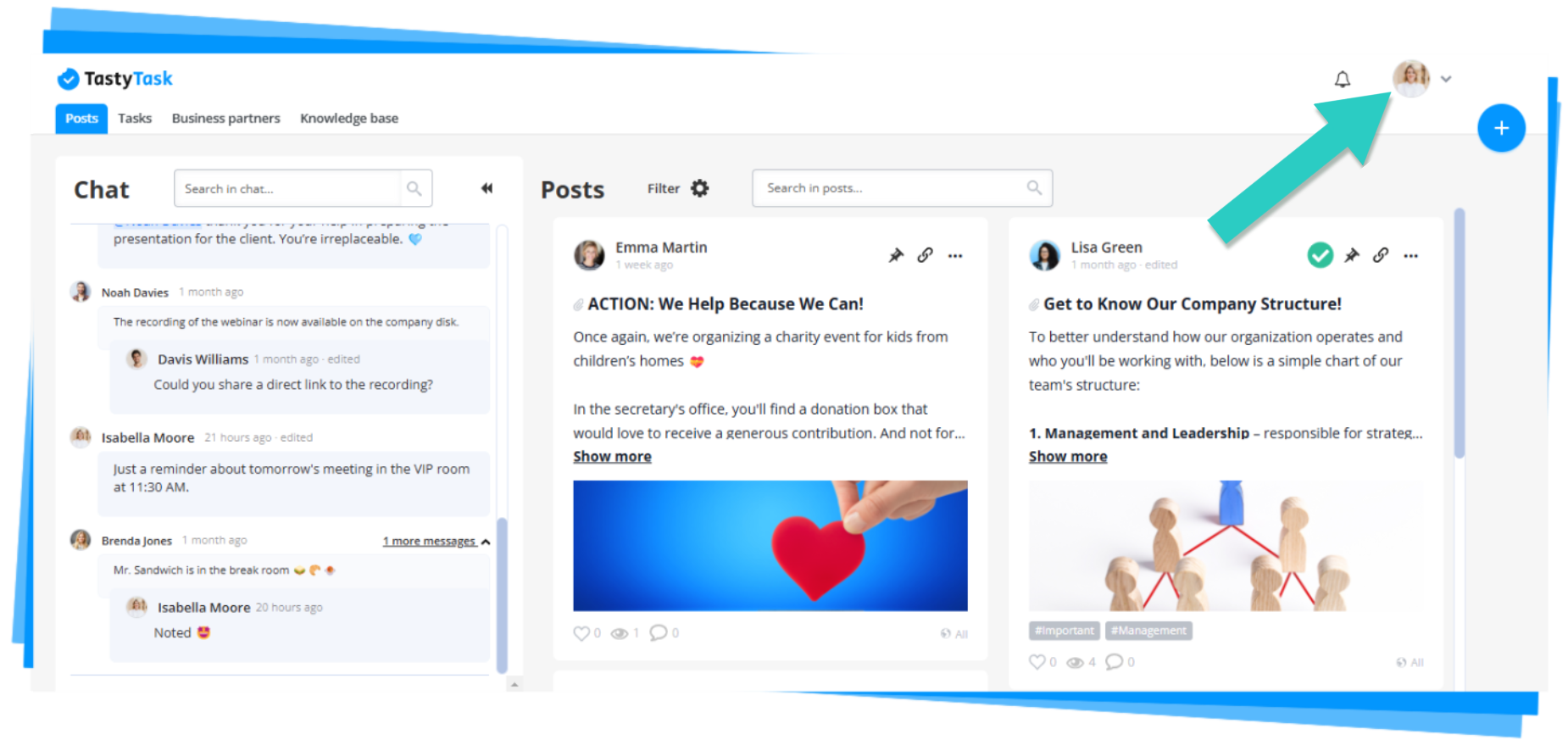
1. Expand the Admin Settings menu located in the top-right corner, next to your profile picture.
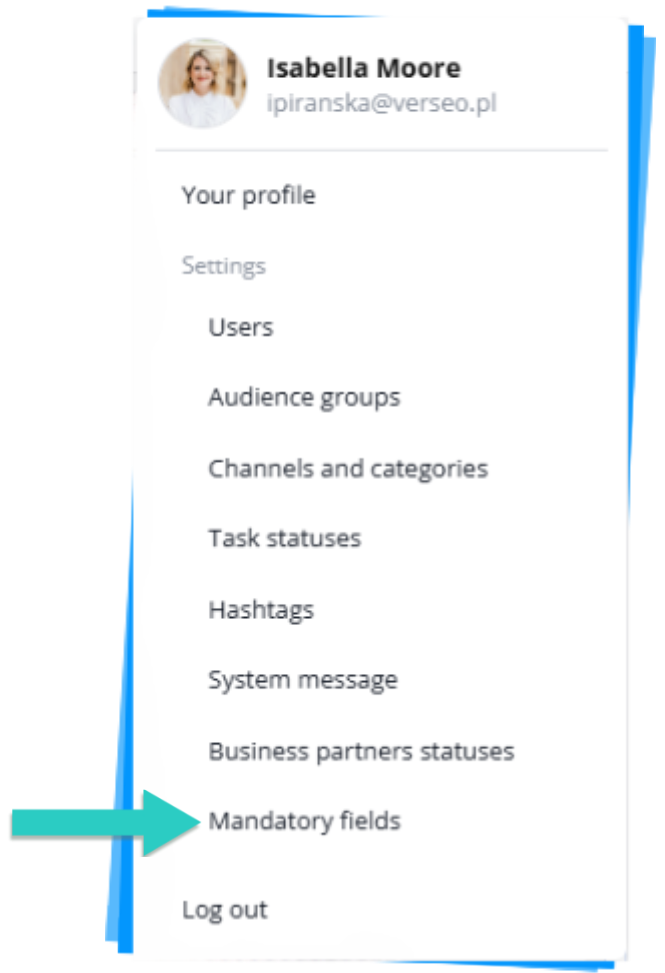
2. From the dropdown list, select Mandatory fields.
3. After navigating to the Mandatory fields, in the Field Required column, check  the fields that should be mandatory in the task form.
The system-required fields (Task Name, Status, and Created By) are already selected by default
and cannot be unchecked.
